---
title: Quickstart
description: Build a small Fluxer bot with JavaScript using discord.js core
---
Fluxer's HTTP and Gateway APIs are Discord-compatible in many places. You can use the low-level `discord.js` core packages as your REST + WebSocket clients.
This quickstart:
- gets you to “ping → pong”
- uses only the `discord.js` core packages that map closely to Fluxer
- avoids framework-style abstractions until Fluxer SDKs exist for your language
- `@discordjs/core`
- `@discordjs/rest`
- `@discordjs/ws`
We're not using the full `discord.js` library. Treat these as typed REST + WebSocket clients that speak the Discord Gateway protocol.
Fluxer is not Discord.
- Discord-only features/events/helpers in the wider `discord.js` ecosystem may not work.
- Fluxer may ship payloads/features these packages don't support.
- For larger or long-lived bots, expect Fluxer-specific code (or use a Fluxer SDK when available).
Use this as a quickstart, not a production architecture.
You will:
- set up a Node.js project
- create a Fluxer application and bot token
- build a minimal “ping → pong” bot
---
## Prerequisites
- [Node.js](https://nodejs.org/en/) (LTS)
- A Fluxer account (https://web.fluxer.app/register)
- A text editor/IDE (for example, [VS Code](https://code.visualstudio.com/))
- Basic JavaScript/Node.js familiarity
Your bot token controls your bot. Don't commit it to Git. Use environment variables or a
secrets manager.
---
## Step 1: Set up your project
1. Create a directory:
```bash
mkdir fluxer-quickstart
cd fluxer-quickstart
```
2. Create `package.json`:
```bash
echo '{
"name": "fluxer-quickstart",
"version": "1.0.0",
"type": "module",
"main": "bot.js"
}' > package.json
```
3. Install dependencies:
```bash
npm install @discordjs/core @discordjs/rest @discordjs/ws
```
---
## Step 2: Create a Fluxer application and bot
1. Open the Fluxer app and sign in.
2. Go to **User Settings → Applications**.
3. Create an application.
4. On the application page:
- Copy the bot token.
- In **OAuth2 URL Builder**, select **Bot**.
- (Optional) Pre-grant permissions.
- Copy the **Authorize URL**.
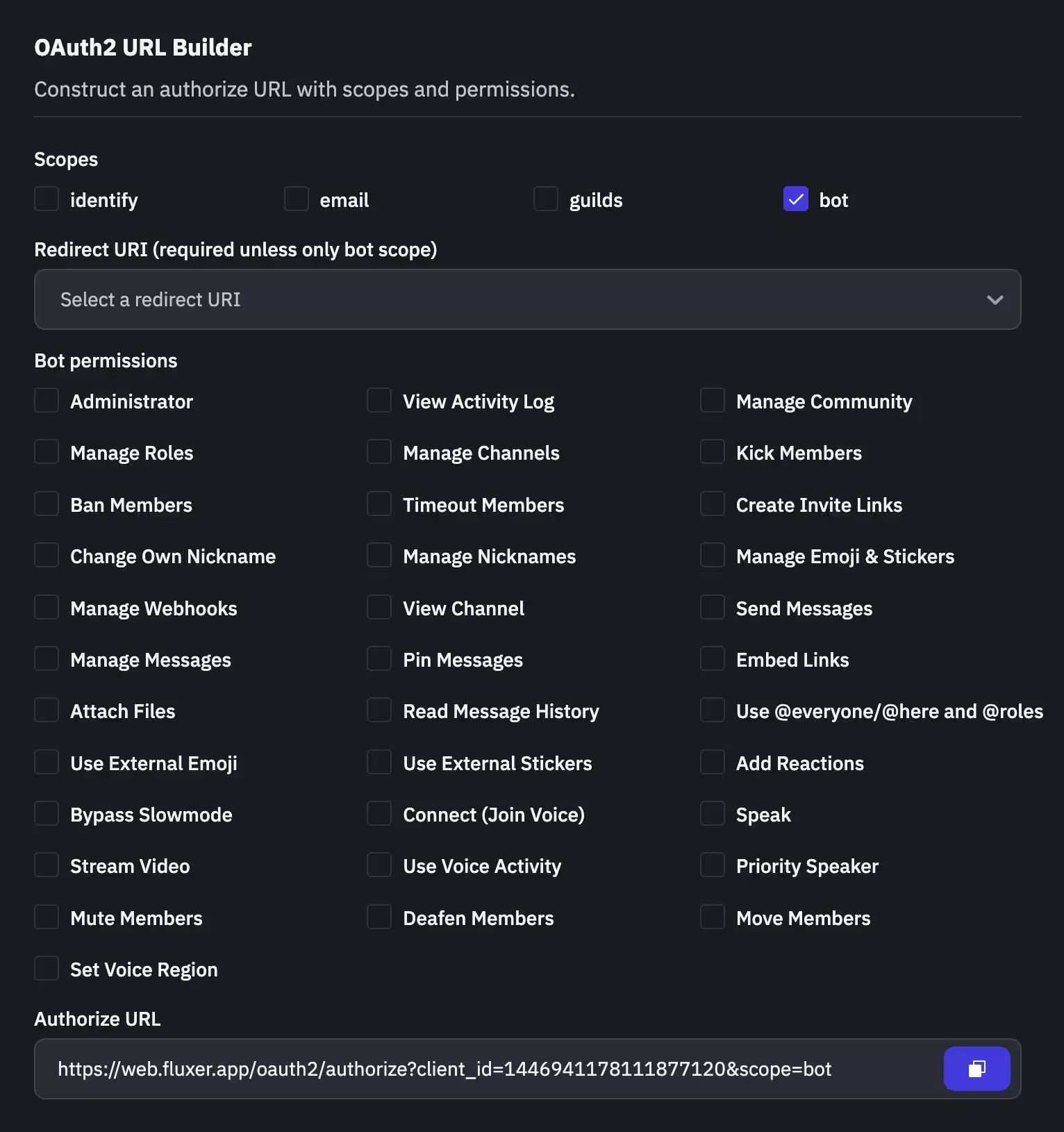
5. Open the Authorize URL, pick a community, and click **Authorize**.
---
## Step 3: Set your bot token
Set `FLUXER_BOT_TOKEN`.
macOS/Linux:
```bash
export FLUXER_BOT_TOKEN="your_bot_token_here"
```
Windows (Command Prompt):
```cmd
set FLUXER_BOT_TOKEN="your_bot_token_here"
```
Windows (PowerShell):
```powershell
$Env:FLUXER_BOT_TOKEN = "your_bot_token_here"
```
---
## Step 4: Write the bot
Create `bot.js`:
```javascript
import { Client, GatewayDispatchEvents } from "@discordjs/core";
import { REST } from "@discordjs/rest";
import { WebSocketManager } from "@discordjs/ws";
const token = process.env.FLUXER_BOT_TOKEN;
if (!token) {
console.error("Missing FLUXER_BOT_TOKEN environment variable.");
process.exit(1);
}
const rest = new REST({
api: "https://api.fluxer.app",
version: "1",
}).setToken(token);
const gateway = new WebSocketManager({
token,
intents: 0, // Fluxer has no intents yet
rest,
version: "1",
});
export const client = new Client({ rest, gateway });
client.on(GatewayDispatchEvents.MessageCreate, async ({ api, data }) => {
if (data.content === "ping") {
await api.channels.createMessage(data.channel_id, { content: "pong" });
}
});
client.on(GatewayDispatchEvents.Ready, ({ data }) => {
console.log(`Logged in as ${data.user.username}#${data.user.discriminator}`);
});
gateway.connect();
```
---
## Step 5: Run the bot
```bash
node bot.js
```
Expected output:
```text
Logged in as MyFluxerBot#0000
```
Send `ping` in a channel the bot can read/write. It should reply `pong`.
If it doesn't:
- Ensure `FLUXER_BOT_TOKEN` is set in the same shell.
- Confirm the bot is authorized into the correct community.
- Confirm the bot can access the test channel.
---
## Next steps
- Read the [Fluxer API reference](./api-reference)
- Review [Gateway Events](./events/gateway-events.mdx)
- Add more handlers
- Use Fluxer HTTP calls for features not covered by `discord.js` core
- If you're up for it: build a Fluxer SDK for your language!